

It has been a long time in the making, but here it is: the biggest update in the history of Ruleset Wizard. Version 0.10.1 lets AI assistants work on your projects, imports windows from any ruleset or extension, brings the git history of your project into the Ruleset Explorer, adds a dark theme and improves almost every editor of the wizard. Let’s see what it brings.
Version 0.10.1 Juiblex
New features
- AI assistants (MCP server): AI assistants that support the Model Context Protocol, such as Claude Desktop or Claude Code, can work on the open project.
- AI guide: a guide that teaches AI assistants how to create Fantasy Grounds rulesets and extensions with Ruleset Wizard.
- Dark theme: Light, Dark or the Windows setting, remembered between sessions.
- Import Windows: creates designer windows from the windowclasses of a .pak or .ext file. Import Content can also import templates, strings, script files and fonts.
- Git history: commits, differences and restoring previous versions of any element.
- Revert pending changes: takes the selected elements (or the whole project) back to the last commit.
- Save + Commit: new commit dialog with the author, the files included and a suggested message.
- Ruleset Explorer: elements changed since the last commit are marked (N new, M modified).
- Ruleset Explorer: multiple selection, Cut/Copy/Paste between folders, Rename (F2) for every element, Delete key, an Add submenu on folders and the filter is applied while typing.
- Windows: new Tabs property to define the record and character sheet tabs that CoreRPG uses (as in 5E).
- New properties: Drop Types on controls, No Drag on labels, and Use All Modules, Footer Icon and Empty Text (GM) on window lists.
- Template Browser: templates of every ruleset the project is loaded on and of the project itself, effective definition, search, filters and “Find usages”.
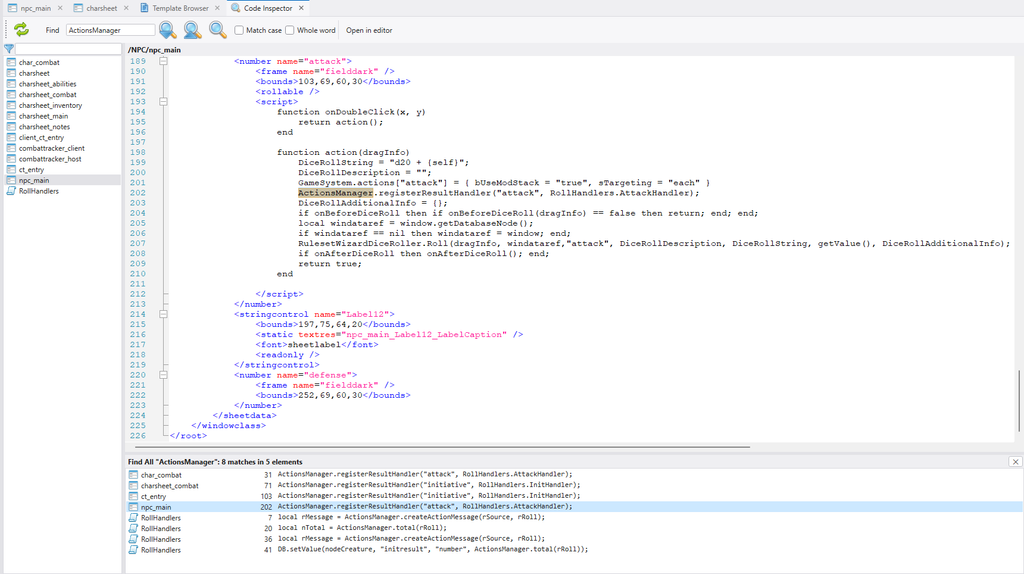
- Code Inspector: Find All (Ctrl+Shift+F), Match case, Whole word and “Open in editor” (F12).
- XML editor: new “Check XML” button (F7).
Improvements
- Window editor: more reliable undo/redo, copy/paste and groups. Pasted and duplicated controls get names derived from the original and keep their anchors and groups.
- Frame, icon and font editors: name validation, image size and warnings, zoom, “Reload from disk”, and frames with custom components are drawn as they are generated, also in the window designer.
- Custom die editor: better preview and name validation.
- Lua editors: autocompletion updated with the current CoreRPG scripts and Fantasy Grounds API, and better handling of autocompletion, event handlers, indentation and comments.
- CoreRPG resources (frames and icons) updated to CoreRPG 2026-10-06.
- New controls follow CoreRPG’s fields (frames, frame offsets, fonts and focus frames). Existing controls are not changed.
- Ruleset Wizard only asks to save when the project has changes, and no longer prevents Windows from shutting down when there are none.
- Generation errors say which window, control or resource caused them.
- Smaller installation (about 12 MB less).
Fixes
- Generation: the automatic pressed frame of a button with State Frames goes with them and is not written when they define one; with a frame offset, it now matches the button’s frame.
- Generation: fixed several errors in dice roll code, string resources, custom dice sides and frame offsets. An empty or invalid project name no longer deletes folders, and Compile to Folder only replaces folders generated by Ruleset Wizard.
- Template Browser: fixed a resource leak that made Ruleset Wizard stop drawing or close after viewing many templates.
- Saving: a failed save no longer closes the project losing the changes or reports it as saved.
- Images and fonts with paths relative to the project folder are found again after using a file dialog.
Ruleset Wizard meets AI assistants
This is the big one. A new button has been added to the toolbar, the green AI button, that starts an MCP server inside Ruleset Wizard:

MCP (Model Context Protocol) is the standard that AI assistants use to connect to other applications. With the server running, any assistant that supports it (Claude Desktop, Claude Code, Cursor, GitHub Copilot in VS Code, Gemini CLI, Codex…) can work on the project you have open in the wizard. The assistant runs with your own account, so you don’t need an API key or any additional subscription.
The assistant works on the project as you would do it yourself. It can:
- Read the whole project: windows with all their controls and properties, scripts, XML files and the XML the wizard generates for each window.
- See the windows as the designer draws them.
- Create windows and folders, add, change, reorder and remove controls, and write Lua scripts and XML files.
- Add frames, icons and fonts.
- Read the templates, windows and files of the rulesets your project is loaded on (CoreRPG, 5E…), so it can reuse what is already there instead of reinventing it.
- Generate the project into a temporary folder to check it, reading the log and a list of common problems: strings that are not defined, unknown templates, wrong
insertbeforereferences or result handlers pointing to functions that do not exist.
Everything the assistant does appears in the editors of the wizard while it works, and nothing is saved until you save the project (or you explicitly ask the assistant to do it). Each change to a window is a single undo step in the window designer, so if you don’t like what the assistant did, a Ctrl+Z is enough.
To connect an assistant, click the AI button and choose Connect an AI assistant…. The dialog shows exactly what to add to the configuration of each kind of assistant, with buttons to copy it:
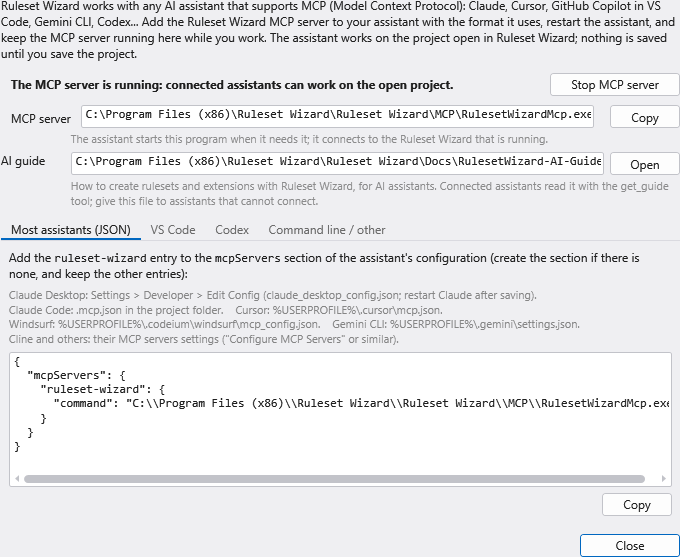
Add the entry, restart the assistant and keep the MCP server running in the wizard while you work (the button stays green). From that moment you can ask things like:
- “Add a Skills tab to the character sheet with a list of skills, each one with a name, a rank and a rollable bonus.”
- “The attack roll of the NPC sheet should add the strength bonus. Fix it and check the generation.”
- “Look at the npc_main window and tell me what is misaligned.”
- “Which CoreRPG template should I use for a list of items with a delete button?”
For the layout, the assistant doesn’t work blind: it can ask the wizard for an image of any window, with the boxes and names of the controls drawn over it. This is how an assistant sees the NPC window of the demo project:
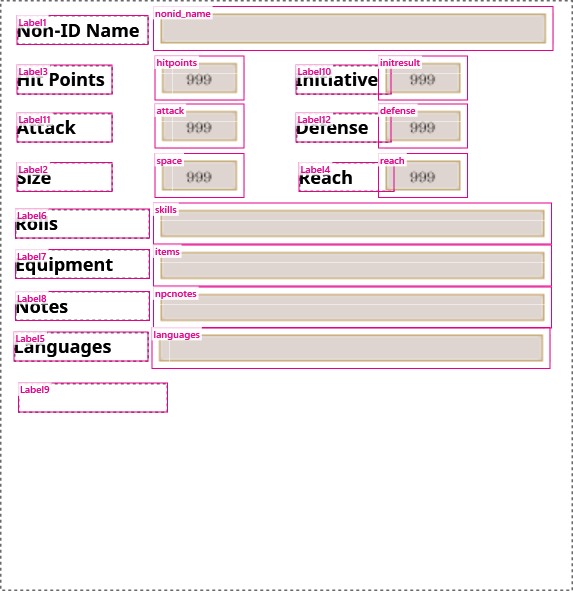
The server also works in demo mode, with the same limits as the application: without a license the assistant can’t save the project nor read the rulesets it is loaded on.
A word of advice: AI assistants are very capable, but they make mistakes. Review what they do, test the result in Fantasy Grounds and, if you can, keep your project in git (see below) so you can always go back.
The AI guide
Knowing the tools is not enough to build a good ruleset: the assistant also needs to know how Fantasy Grounds and CoreRPG work and how the wizard generates each thing. For that, the wizard includes a guide written for AI assistants: Fantasy Grounds essentials, how Ruleset Wizard generates a project, designing windows, layout and anchoring, templates, the database, character sheets and tabs, lists, records and the sidebar, dice rolls, Lua scripting, the combat tracker, multiplayer, recipes and a checklist of common pitfalls.
Connected assistants read it directly from the MCP server, section by section as they need it. It is also installed in the Docs folder of the wizard (RulesetWizard-AI-Guide.md), so you can give it to any other assistant, even one that can’t connect to the wizard, or simply read it yourself: it is a good summary of how things work.
Import Windows
The Import Content option could already import frames, icons, fonts and scripts from a .pak or .ext file. From now on it can also import its windows as designer windows, ready to edit in the window editor:
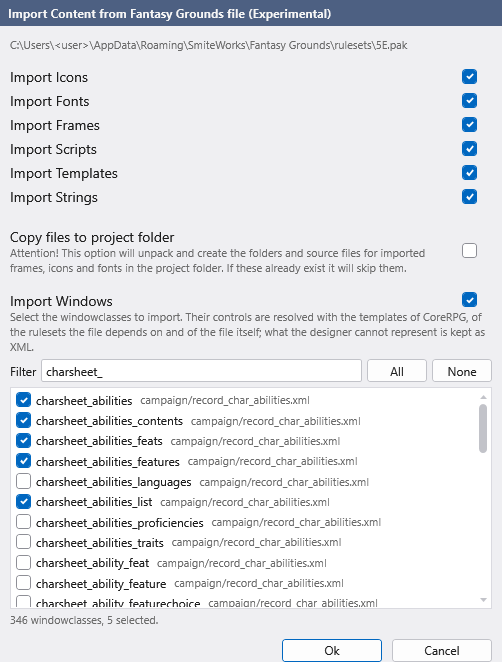
Select the windowclasses you want (the filter helps with big rulesets) and the wizard does the hard work. For every control it resolves its whole chain of templates, from CoreRPG, from the rulesets the file depends on and from the file itself, chooses the right designer control and places it as Fantasy Grounds would, following anchors, relative positions, percentages and windows that copy or merge with others. When possible, a control is written as a plain designer control with its properties; when it is not (scripts that must chain with those of its templates, merge rules…), it keeps its template and only what it defines itself. Whatever the designer can’t represent is kept as custom properties or as XML, so nothing is lost.
Import Content can also import what those windows need to work without the original package: its templates and strings (as XML files of the project), the Lua script files used by its windows and templates, and the fonts that only change another font. The imported windows go to the folder of their original XML file.
This feature is still marked as experimental. Fantasy Grounds windows can be very complex, so check the imported windows, and don’t hesitate to report the ones that don’t look right.
Git integration
Projects in Advanced Development mode were already designed to be kept in git, and the “Save + Commit” button made a commit of the project. This version goes much further:
- Save + Commit (Ctrl+D) now shows a commit dialog with the author, the files included and a message suggested from the changes. The commit only includes the files of the project, and the repository is also found when the project is in a subfolder of it.
- The Ruleset Explorer marks the elements changed since the last commit: N for new elements, M for modified ones, and a dot on the folders that contain them.
- The new Git history… option (also a toolbar button for the whole project) shows the commits in which the project or the selected elements changed.
- The new Revert pending changes… option takes the selected elements, or the whole project, back to the last commit, including what has not been saved yet.
The history works with any project saved in a git repository, not only in Advanced Development mode. For each commit you can see the elements that changed and the differences of each one: windows control by control, and scripts and XML files with their code:
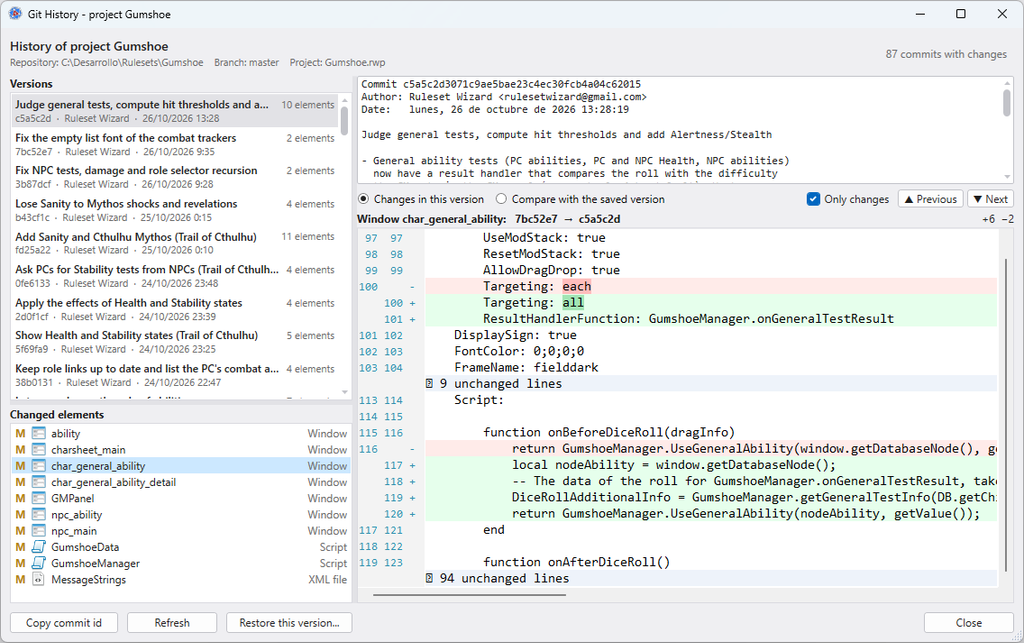
And if you don’t like the change, Restore this version… brings back any previous version of an element (or one that was deleted) into the project. As always, nothing is saved until you save the project.
Ruleset Explorer
The Ruleset Explorer has been rewritten to make working with big projects much easier:
- Multiple selection with Ctrl+click, Shift+click and Ctrl+A. Moving, copying, deleting and exporting work on the whole selection.
- Cut, Copy and Paste (Ctrl+X, Ctrl+C, Ctrl+V) between folders, Rename (F2) for every type of element and the Delete key.
- An Add submenu on folders, to create any element directly in them.
- The filter is applied while you type.
- Dragging an element to another folder keeps its editor open, and “Create copy” on a folder now copies all its content.
- Elements of different types can have the same name, as in Fantasy Grounds (CoreRPG has an icon and a window called
calendar). Only windows and XML files can’t share a name, because both generate a file with it.
Window tabs
Following the 0.9.4 update, windows have a new Tabs property to define the tabs of record and character sheets that CoreRPG creates with WindowTabManager, as the 5E sheets do. Each tab has its name, label, icon, the window class shown in it, frame and scroll options and who can see it, and the wizard generates the <tab> elements of the windowclass. The new Inherited Tabs property decides what happens with the tabs of the window it copies or merges with: replace them, add the new ones, or remove them and show only these.
Remember that the tabs are only shown if the window copies record_window_tabbed or charsheet_base, or if its script calls WindowTabManager.populate(self). The wizard warns in the log when something prevents the tabs from being shown.
New properties
- Drop Types on all controls: the drag types (number, dice, string, shortcut…) for which the control is highlighted as a drop target.
- No Drag on labels, to prevent dragging their text.
- Use All Modules, Footer Icon and Empty Text (GM) on window lists.
Template Browser
The Template Browser, added in version 0.9.0, has been rebuilt. It now reads the templates as Fantasy Grounds does: those of every ruleset the project is loaded on (for an extension, all the rulesets in its list) and those they import, plus the templates defined in the project itself. For each template it shows the whole chain of templates it inherits from, and the effective definition: the result of merging all of them, scripts included, in the order Fantasy Grounds chains them:
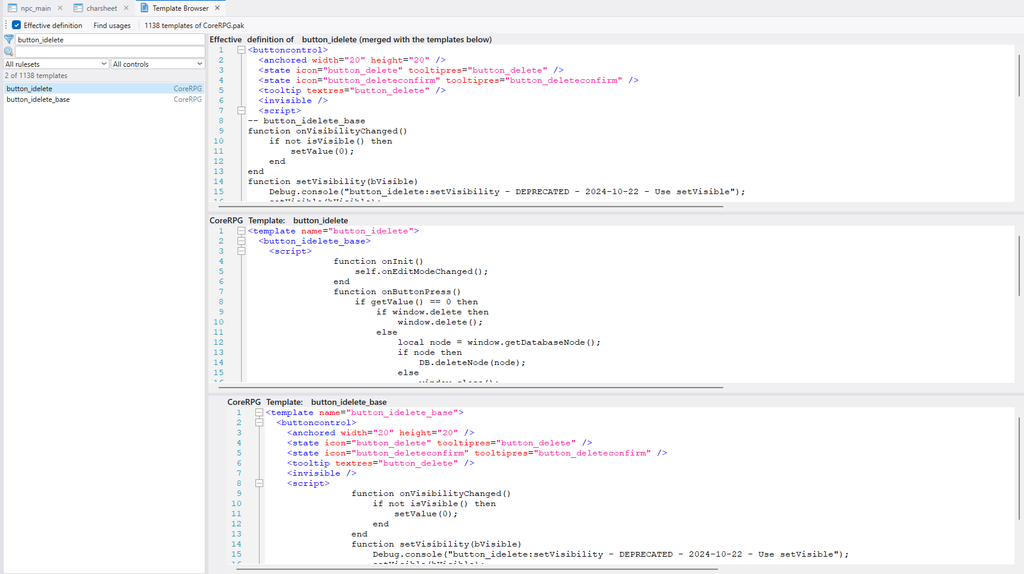
You can also search in the code of the templates, filter them by ruleset and by control type, and the Find usages button shows where a template is used in your project.
Code Inspector
The Code Inspector has a new Find All option (Ctrl+Shift+F) that lists every match in the generated code of the windows, scripts and XML files of the project, with Match case and Whole word options. Click a result to see it in its context, and Open in editor (F12) takes you to that code in its own editor: the line of a script or XML file, or the control of a window it belongs to.
Also, the XML editor has a new Check XML button (F7) that checks that the XML is well formed and shows where the error is.
Dark theme
The day/night button of the toolbar now lets you choose between the Light theme, the Dark theme and the Windows setting, and the wizard remembers your choice. The whole interface follows the theme, including the code editors and the property grid:
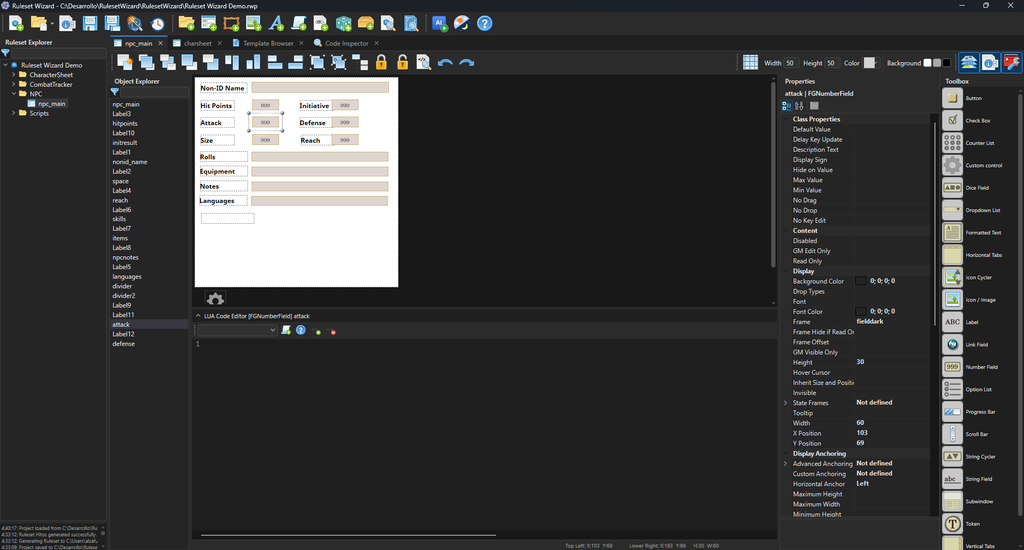
The windows you design keep their own look, with their frames and fonts. For windows without a frame (subwindows, list items), whose dark fonts would be hard to read over a dark background, the window editor can show them over a white, gray or black background with the new Background buttons of its toolbar. That background is only for the designer and is not generated.
As always, thanks to everyone who reports problems and suggests improvements. Enjoy the update!